
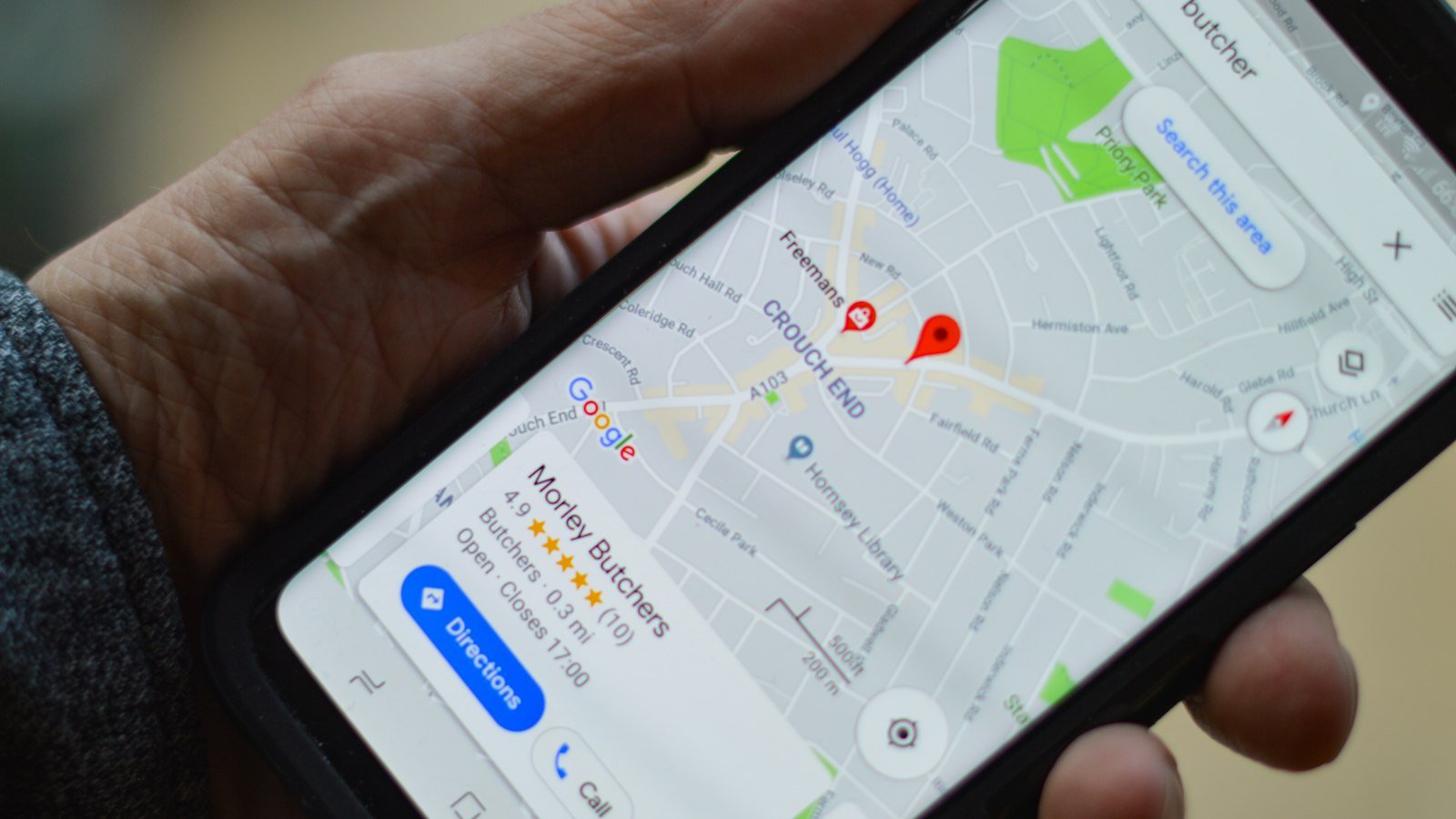
When someone searches for a business on Google, the first thing that shows up is often not the website but a panel with the name, reviews, photos, hours and buttons to call or get directions. That panel is the Google Business Profile. It is free and, for local businesses, one of the most powerful tools to attract clients.
What the Google Business Profile is
It is the current name of the former Google My Business. It lets the company control the information that appears on Search and Maps: address, phone, hours, website, photos, products, services and reviews.
How to create or claim the profile
- Search for your business name on Google. If the profile already exists, click “Claim this business” or “Own this business?”.
- If it doesn’t exist, create a new profile with the company’s Google account.
- Enter name, category, address or service area, phone and website.
- Complete the verification Google requests to confirm you are the owner.
Use a company Google account, not an employee’s personal one, so you don’t lose access in the future.
Filling in each field
- Name: exactly the company name, with no extra keywords.
- Primary category: the one that best describes the business. It is one of the most important factors.
- Secondary categories: other relevant services you offer.
- Description: what you do, for whom and where, clearly.
- Hours: always up to date, including special holiday hours.
- Phone and WhatsApp: the same as on the website.
- Website: the link to the home page or the most relevant page.
- Services and products: add them with descriptions and, if possible, prices.
- Attributes: accessibility, payment methods, Wi-Fi, parking.
Photos that make a difference
Profiles with real photos convey more trust. Post the storefront (to help people find the place), the interior, the team, products and finished work. Update photos often and avoid generic stock images.
Reviews: how to get them and reply
- Generate the review link on the profile itself and send it on WhatsApp after the service.
- Ask simply: “If you liked the service, your review helps us a lot”.
- Reply to every review, thanking people for positive ones.
- For negative ones, reply calmly, acknowledge the problem and offer a solution.
Posts and updates
The profile lets you post updates, offers and events. Posting regularly shows the business is active and gives clients more reasons to choose you.
Questions and answers
Anyone can ask questions on your profile. Follow them and reply quickly. You can also anticipate common questions, such as parking or payment methods.
The profile and the website work together
The profile earns the click; the website convinces. Make sure the profile link leads to a clear page with services, proof and a WhatsApp button. The same information on the profile and on the website reinforces the trust of both Google and the client.
Mistakes that hurt the profile
- Adding keywords to the company name.
- An outdated address or hours.
- Buying reviews or asking friends to review in bulk.
- Leaving reviews unanswered.
- Losing access because the profile is on someone else’s account.
How to ask for reviews without awkwardness
Many business owners feel shy about asking for reviews. Some natural ways:
- At the end of the service: “If you liked it, a Google review helps us grow a lot”.
- On WhatsApp, in the follow-up, with the direct link.
- With a QR code on the counter, the table or the packaging.
- In your email signature and thank-you note.
Don’t offer discounts or gifts in exchange for positive reviews: it goes against Google’s rules.
Review reply templates
Positive review: “Thank you, Mariana! We’re so glad you enjoyed the service. See you next time!”
Negative review: “Hello, Carlos. We’re very sorry about your experience. We want to understand what happened and fix it. Could you message us on WhatsApp at [number]?”
Reply politely, without arguing in public, and move the conversation to a private channel when needed.
Metrics to track on the profile
- How many people viewed the profile on Search and Maps.
- How many called, asked for directions or clicked the website.
- Which searches led to your profile.
- How the number and rating of reviews evolve.
This data shows whether improvements are working and helps decide where to invest.
Conclusion
The Google Business Profile is free and can be a local business’s main showcase. Fill in everything, keep it up to date, post real photos, ask for and reply to reviews and connect the profile to a clear website. Together, they make your business found and chosen.
Frequently asked questions
Is the Google Business Profile paid?
No. Creating and maintaining the profile is free.
Can I have a profile without a physical address?
Yes. Businesses that serve clients at their location can set a service area and hide the address.
How do I get to the top of the map?
The right category, a complete profile, frequent reviews, consistent information and a good website all help. The searcher’s distance also matters.